> For the complete documentation index, see [llms.txt](https://guide.valpashotels.com/llms.txt). Markdown versions of documentation pages are available by appending `.md` to page URLs; this page is available as [Markdown](https://guide.valpashotels.com/installation_router_smart_legs/valpas-smart-legs-if-your-beds-dont-have-legs/configuring-smart-legs-with-the-valpas-mobile-app.md).
# Configuring wall-mounted SafeSleep bed legs with the Valpas mobile app
This guide walks you through the process of configuring wall-mounted Valpas SafeSleep bed legs using the Valpas app. Please follow each step carefully to ensure proper installation and room protection
## Step 1: Access installation mode
{% stepper %}
{% step %}
### Open the Valpas mobile app
If you don’t have the Valpas app yet, follow the instructions under [**Mobile app download**](/the-valpas-guide.md#step-1-install-the-valpas-mobile-app).
{% endstep %}
{% step %}
### Enter installation mode
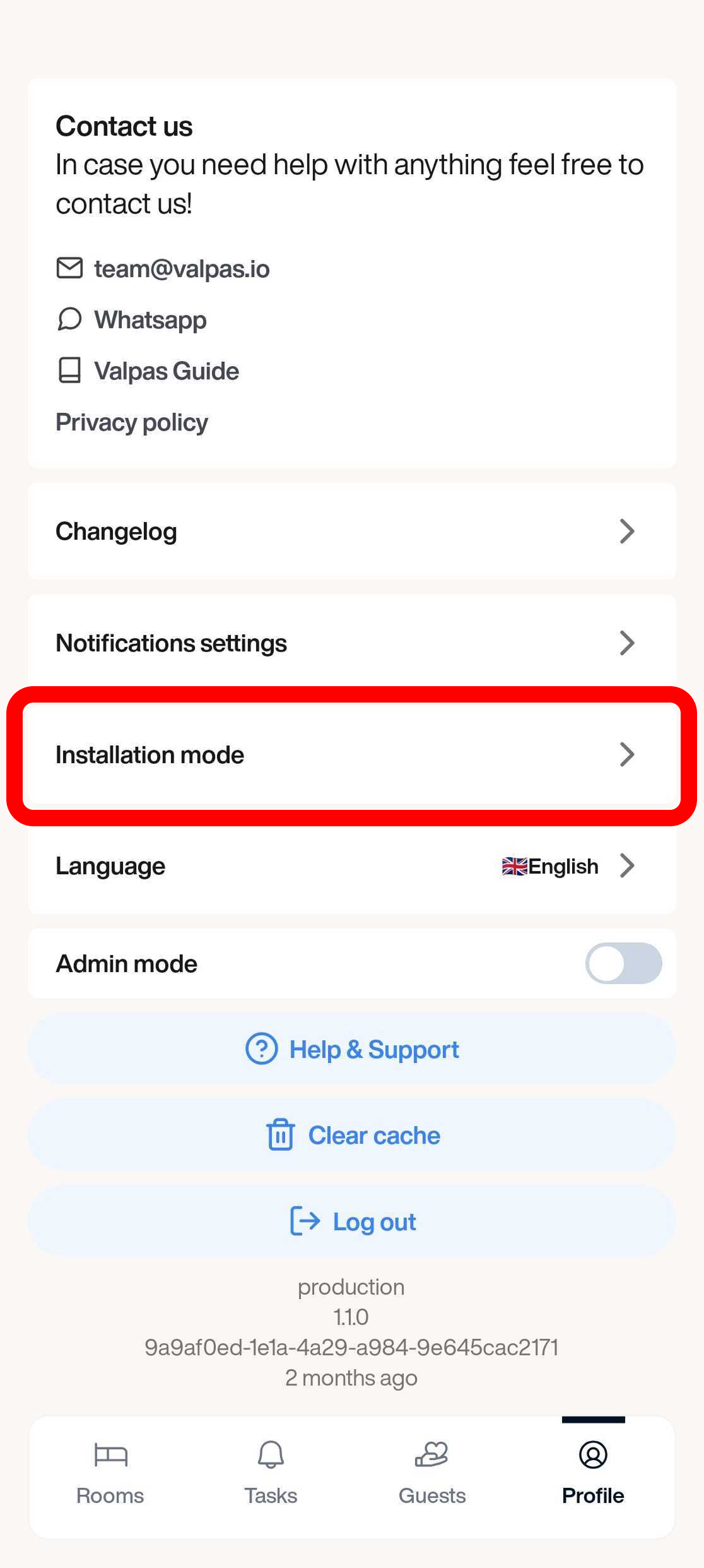
* Tap the **Profile** icon in the app.
* In the profile menu, select **Installation mode** to begin the configuration process.
{% endstep %}
{% endstepper %}
## Step 2: Add rooms and beds
{% stepper %}
{% step %}
### Add a room
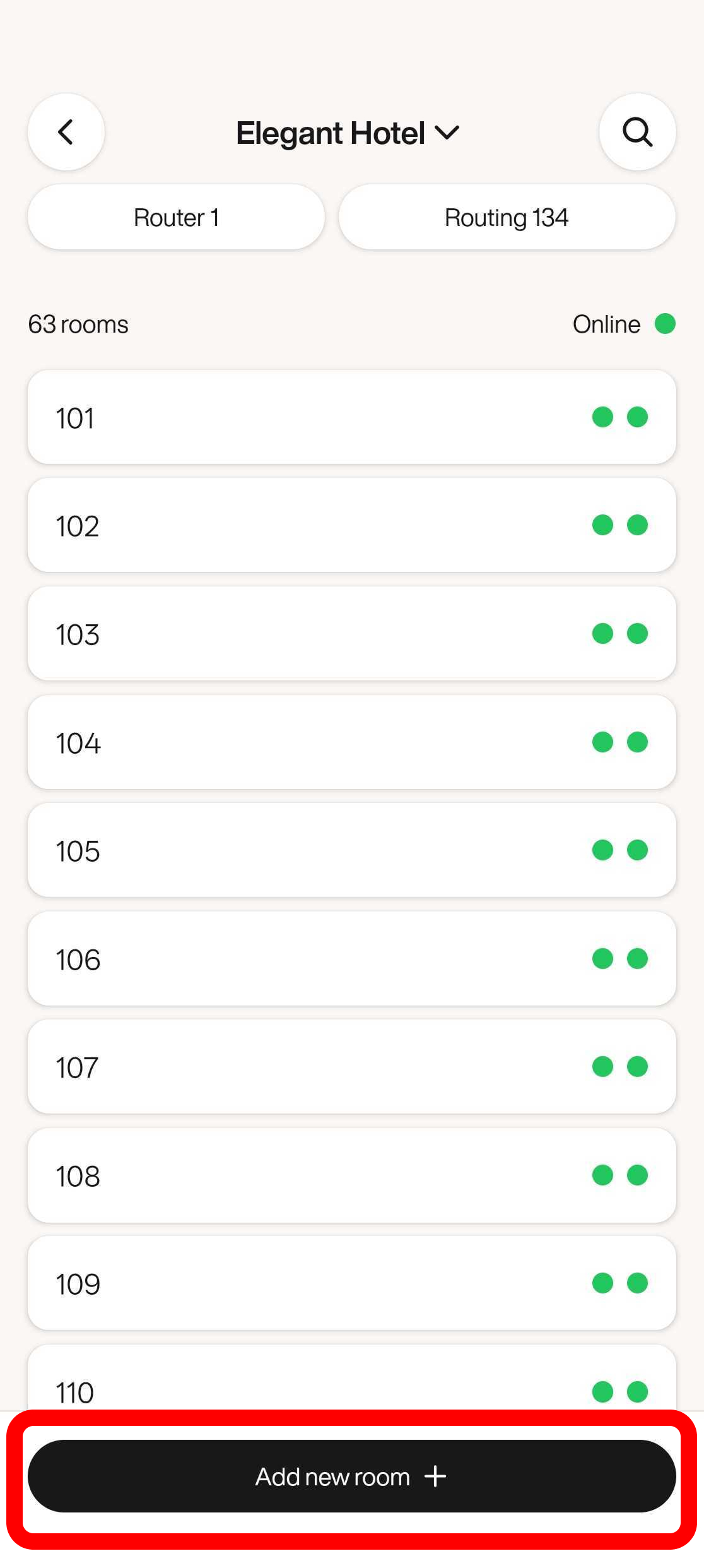
Tap the **Add new room** button at the bottom of the screen to add a new room.
{% endstep %}
{% step %}
### Name the room
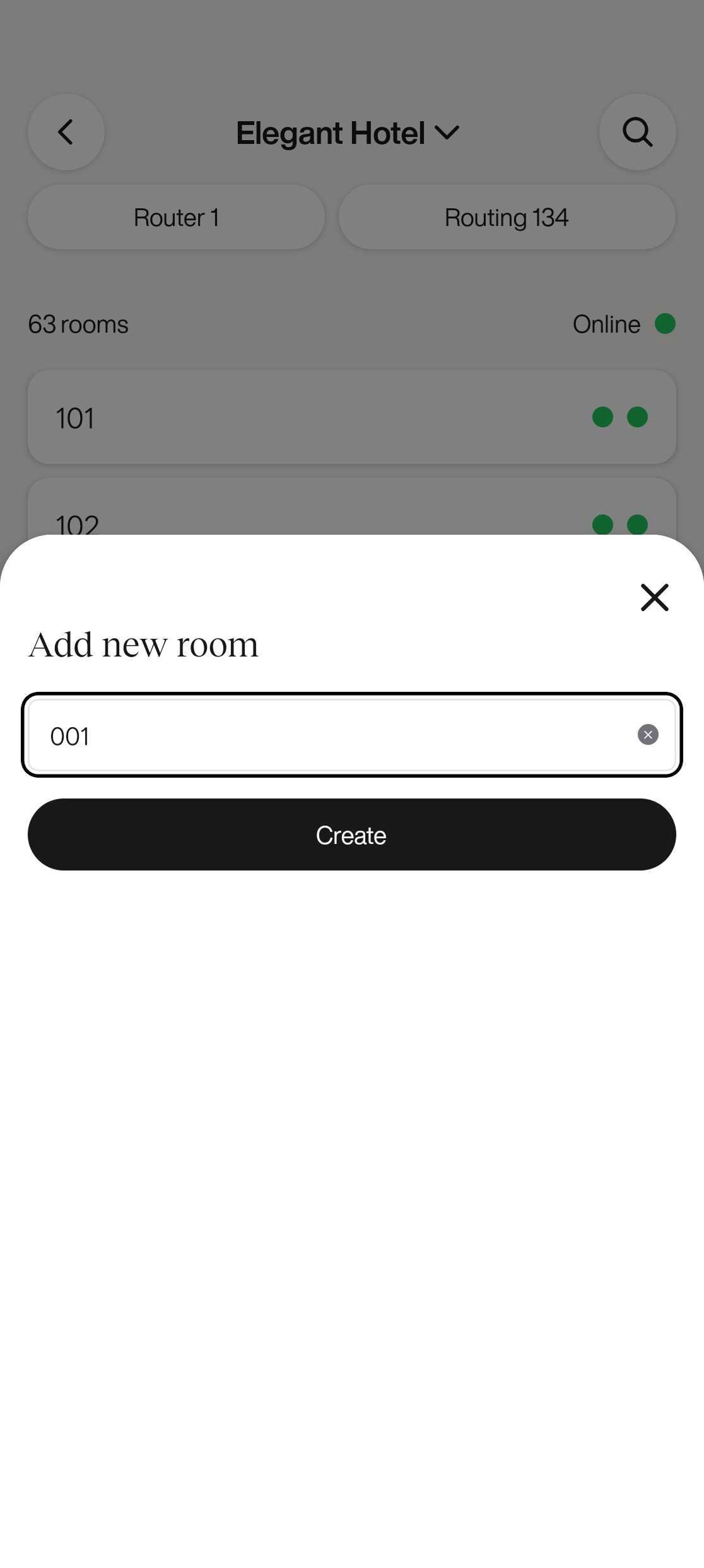
Enter the name of the room where you’re currently installing the Valpas SafeSleep bed legs.
{% endstep %}
{% step %}
### Add a bed
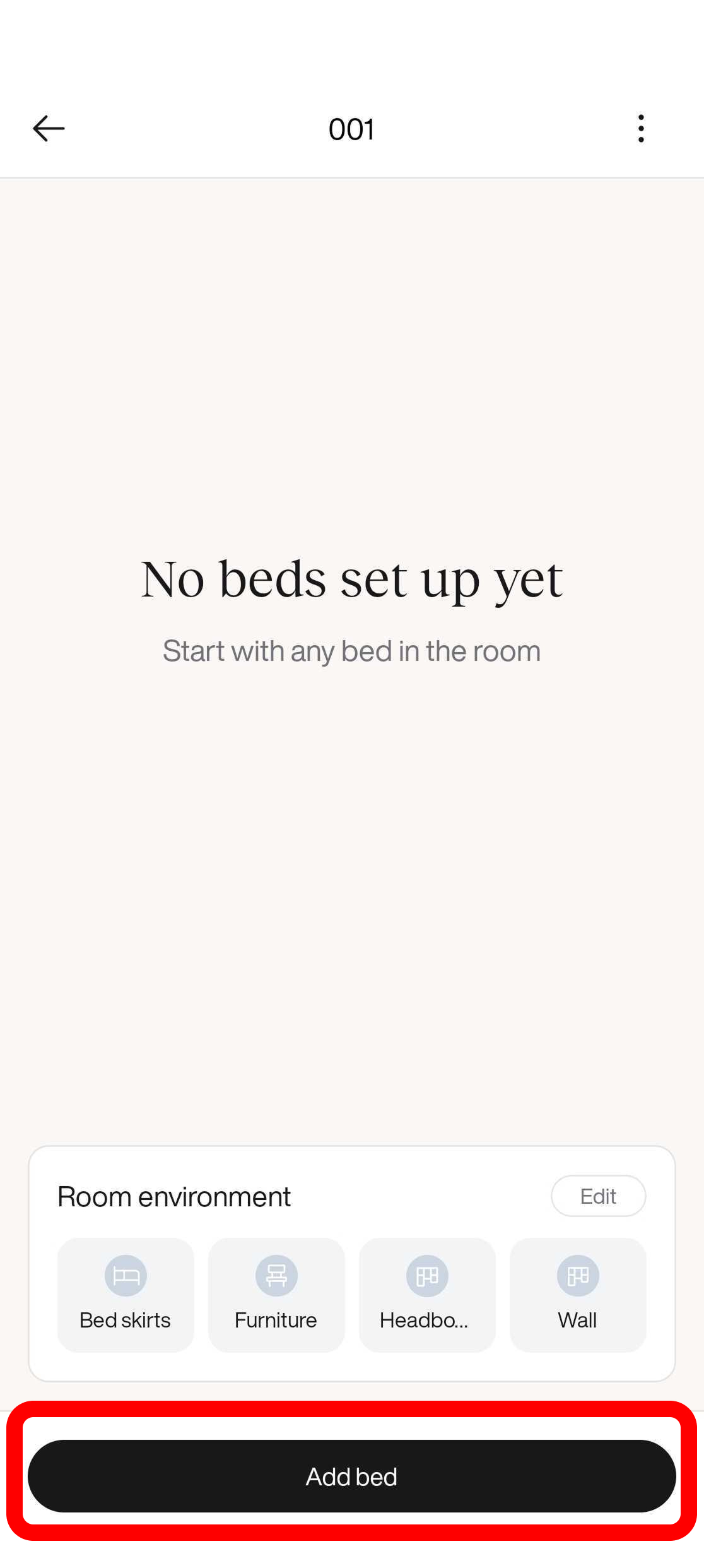
Tap the **Add bed** button to add a new bed to the room.
{% endstep %}
{% step %}
### Configure the bed
Pick the bed type that matches the bed in front of you.
Adding a label is optional, but **Wall mount** clearly identifies the SafeSleep bed legs as wall-mounted.
Tap **Continue**.
{% endstep %}
{% endstepper %}
## Step 3: Configure the SafeSleep bed legs
#### **Remove the cassette**
{% stepper %}
{% step %}
### Remove the cassette
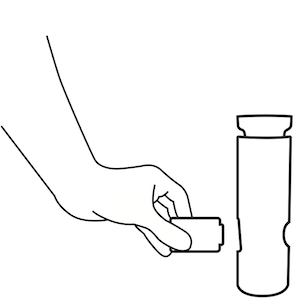
Gently remove the cassette from the SafeSleep bed leg you’re installing. To do this, push the module out of the leg.
{% endstep %}
{% step %}
### Configure it with the Valpas mobile app
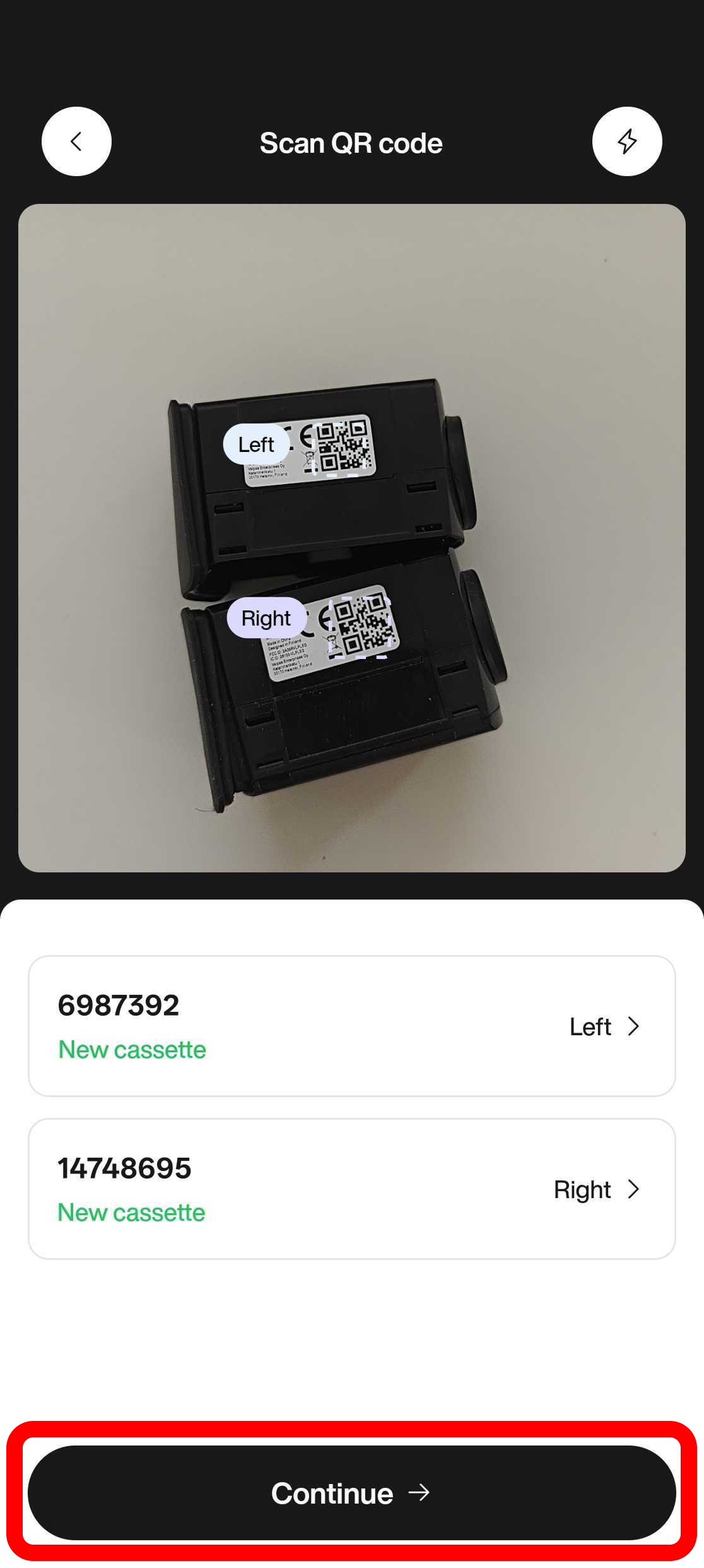
Scan the QR code on each cassette. The app identifies the cassette and assigns it a position automatically, so each SafeSleep bed leg is mapped to the correct side of the bed.
To change a position, tap the **Left** or **Right** label next to the cassette. Once both cassettes are scanned, tap **Continue**.
{% endstep %}
{% step %}
### Remove the battery strip
Carefully remove the battery strip from the cassette to activate the module.
{% endstep %}
{% step %}
### Reinsert the cassette and check for a red light
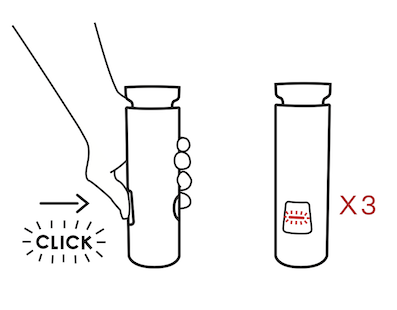
* Place the cassette back inside the SafeSleep bed leg. Ensure it is securely placed inside.
* Observe the cassette; a flashing red light indicates that the Valpas SafeSleep bed leg is installed correctly.
{% endstep %}
{% endstepper %}
{% hint style="danger" %}
**If the red light stays on or doesn't blink:**
* Remove the cassette from the leg and reinstall it. A blinking red light confirms the installation is successful.
{% endhint %}
Your Valpas SafeSleep bed legs are now installed and ready for use. If you encounter any issues [contact Valpas support](mailto:team@valpas.io).